
There always seems to be this mystery aura around building your own website…
Like it’s some dark art that only tech geniuses can pull off.
Well, I’m here to take that mystery away.
- Yes, you need to be able to Read and Type
And I am sure you can do that - Yes, you have to take some steps
You just need to be shown what they are
No coding wizardry. No confusing jargon. Just a clear path you can follow.
You need to decide “Why you want a website?”
Ok, so when you create a document, draw a picture, even doodle something, you have a reason for it. Usually there is some thought that you want to bring to everyones attention.
It might be that you just want to say
“Hey <insert name of the person you want to impress> , Look at the Website I made”.
But for starters, you dont really need a reason.
This is just to show you how simple it can be… but it’s a good idea to have one.
So let’s start out with the most simplest, absolutely Free, Nothing to lose, way to build your first website.
Are you ready to have some fun?
The Most Simplest Website Under the Sun.
Introduction:
But first, a few words… I want you to go wild and crazy with this as you can easily delete it and start again. This is the best way to get your hands dirty with absolutely no Risk. Well, except for the time you might spend, but it’s time definitely being put to good use.
The Steps
For this, you are going to need a GMAIL Account.
The number of Tools “good ole Google” provide us with is pretty amazing and they are Absolutely Integral ( I have a thing about sneaking in words using the Letters A.I. ) in your every day, online life.
If you already have a google account, then great!
If you don’t, it’s free to register and create your very first Gmail account.
Just go to Google.com using your favorite browser (Google’s Chrome Browser is an option, but worth a look at it if you don’t have it )
Ok, so hopefully you are all logged in to your Google account.
Now, type the following URL (website address or Unified Resource Locator) into your Browser, or simply click…. sites.google.com and if you are logged in, then you will see the magic happen.
So now you should be staring at the magic page where you can create your very first website…
All you need to do is head on up to the “Start a New Site” section near the top of the page.
This is where you can select from a number of templates.
Take a look and see if any of them “tickles your fancy”. Remember you can edit the gizzards out of these so don’t be scared to have a play…
If you want to ditch ( or delete) it and start again, you can click on the Blue Page Symbol which will take you back to the starting page.
There you will see the “site” that you created in the “Recent Sites” section. There, you can simply click on the 3 vertical dots and select Delete… and start again… How easy is that?
The Editor (or the bit to make some fun stuff happen)
I like to start with the Blank Site ( a bit like my mind appears to be like at times ) and here we can really go to town.
You should be seeing a whole bunch of “Things” on the right hand side. These are the tools you can use to simply create the “Elements” to plonk on your page.
You should see the TABS called Insert, Pages and Themes at the top of the right hand side panel. By default, the Insert Page should be showing.
Now, don’t get dazzled and don’t think “Oh no, look at all this stuff….”. It’s natural to think that but what you should be thinking is “Wow, Ok now how to I start creating my masterpiece?”. Well the answer is one step at a time.
I really just want you to “Play” with this. As with Anything, the more you use it the more familiar you’ll become with it.
The BIG Takeaway with this is: Once you get comfy with how this works… when we dive deep into creating a website on your own hosting and using WordPress (which takes a few steps) you wont be so mystified with everything. At least you’ll be comfortable with How to Create Pages and things…
So the basic things included are…
- Text Box (This lets you create secitons of text )
- Images (self explanatory but we will come back to that later)
- Embed (again we’ll come back to that later)
- Drive ( much much later if at all…)
You’ll also be staring at the top right where it says “Untitled Site”. Feel free to be original and type in something like “My First website”. It won’t hurt and we all do that at the start…
And you’ll see those “Words” magically appear on the top right of the “Header” or it’s also referred to as the “Hero” section.
NOW Click on the text in the Header that says “Your Page Title” and see what happens…
Do you see it? That little white bar that appears with “more stuff”. You’ve got to love it 🙂
I had better put some images in here.. Sorry, I’ve been a bit slack. Give me a second or three….
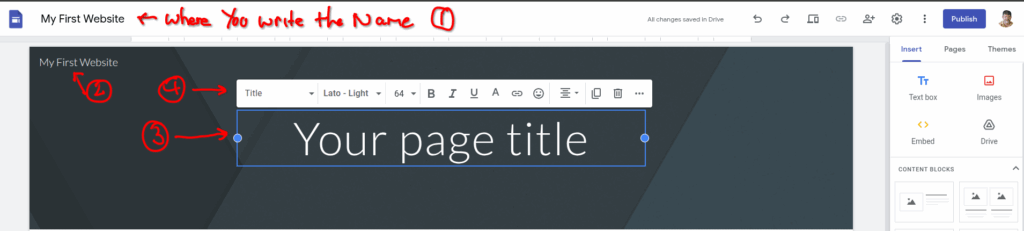
Ok so here’s the full thing showing what you should have, so far…
- Is where it said “Untitled Document” and I plonked in “My First Website”.
- Shows where “The TItle” appears after you type it in.
- Is the text in the Header that you have clicked on…hopefully and
- is the White Menu Bar that appears when you do.
You should also see the Top of the Right hand side Menu which we’ll come to shortly…
Now if you click on “Your Page Title” you will see a Cursor and this is how you can change the text to your hearts content…
Don’t worry about the image in the header yet… Remember we can add, change, mess up, fix it again… But if you are feeling adventerous, go right ahead and tinker your heart out…
Remember, at this stage, you are just playing.. No Pressure, just having fun learning.
Time To Show Off.
Ok so I just want to quickly go through the next steps really quickly, so you can “Show Off” your creation. I’ll explain these in more detail later…
But the gist is… when you want to – Click on the Big Blue Button on the Top Right that says “PUBLISH”.
You can do this anytime as nothing bad will happen…. Only Great Things will happen.
Your New Website will be accessible to the world – Woohoo 🙂
So now you can Show “Mum” or whoever you want to show it off too to (not Tutu, but that might be an idea for a website.. Hmmm “Now you can have your own Tutu to.com” ).
And Definitley don’t be shy… This is a BIG moment.. Celebrate it 🙂
Where were we… Oh yes – It’s Publish Time:
Now when you Click on Publish – You will be asked for a “Web Address”. So what is going to happen here is that the URL is going to be along the lines of https://sites.google.com/view/<web address> where <web address> is going to be an “Unique” (no one else has used…yet) name, that you have to come up with yourself. You can do it, it’s not that hard…
Now after you type in your “Web Address” Google will check to see if it’s available.. And guess What? myFirstwebsite is Long Gone (sometimes others have the same idea) … So come up with something, unique, relevent to you and definitely something you can remember… I think that helps… but I forget… Hmmmm.
So short and sweet. It’s a bit like coming up with Domain Names that no one else has used yet… But come up with something. Remember it’s effectively “temporary” or it will exist as long as You want it to… But be creative.
How to get the link?
If I miss this bit you’ll be a bit annoyed with me.. .So… I had better get a screen shot…
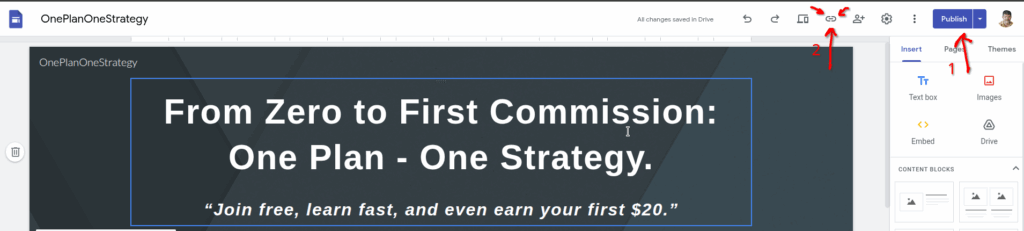
- That is where you Clicked to Publish and created the Web Address.
- Clicking on the The “Chain” or Link symbol will Copy Your new Website address…
So you can grab it, save it, share it with your friends and Family… Print it on Tshirts…NOW You are a Bonefide Website Builder and Owner…
An example Website
There’s nothing like a good example. So I’ve created one such beast… (which you can see above already…) and the link is https://sites.google.com/view/oneplanonestrategy/home
But….That website address sucks…
Ok so that link (yours will be the same but different on the end bits…) is a bit, well, you know… not overly interesting and a pain to remember…
BUT Guess What??? I’ll wait a few seconds for you to think… Ok you don’t have time for this…
So what you can do is to give it your very own, belongs to you… Domain Name…
Which I was meant to do for the example site but I just bought it and now I have in my hot little hands… and I’ll show you how later…
If you do want to jump ahead and get your own domain name, you will need to “Connect” it to your google site… But I’ll go through that later, as I’ve already said…
Now I’ve already got one, precooked, demonstation site. https://www.getbuyerclicks.com/home.
It’s an OLD site, I need to revamp…But I’ve only shown this just so you can see you can go from the long google sites URL to your very own domain….. ONLY IF YOU WANT TO.
In the Next Installement…
Congratulations on getting this far… Well done 🙂
I’ll leave you with this for now… But if you feel adventerous, go right ahead.
So we’ve got to look into “How to Get and Connect a domain name”. I’m not a big fan of Godaddy… I personally use Dynadot as my primary Domain Name Registrar. Don’t get sucked in by some “Cheap” first year prices to Hook you in… If you do… Just read the fine print on how much it will cost you for subsequent years…. Yeah, it’s a shocker…
Find me on Facebook…
If you have any questions, queries, suggestions etc, then please contact me via My Facebook Page and we’ll get you sorted out.
Until next time… Create some websites 🙂 Don’t be scared… Be Proud and Have a Ton Of Fun doing it 🙂